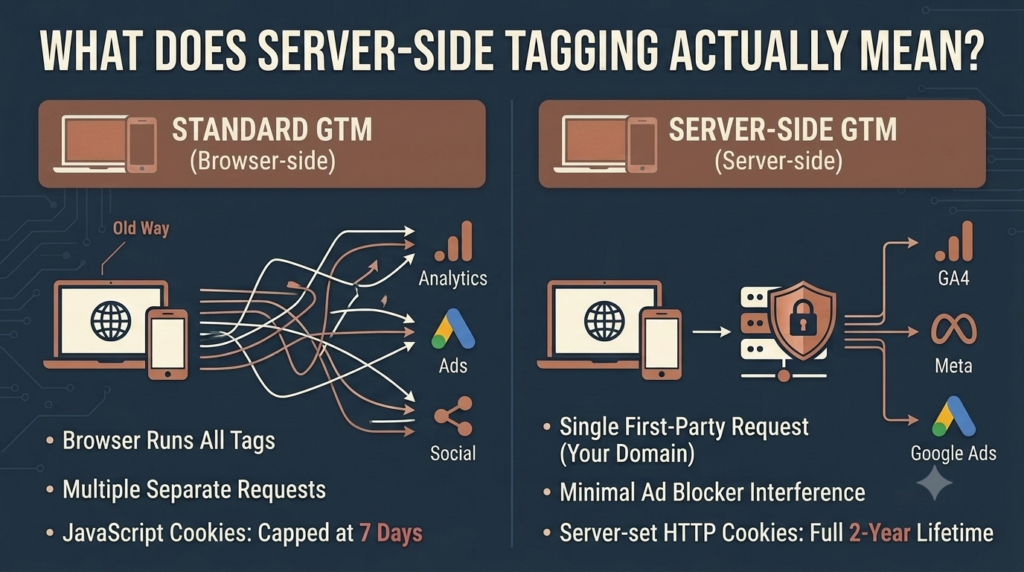
Server-side tagging through Google Tag Manager is the foundation of measurement in 2026. It moves event collection from the user’s browser to your server. The advantages are concrete: longer cookie lifetimes (no ITP 7-day cap), better data quality (events do not get blocked by ad blockers), enriched event payloads, and faster page performance because fewer scripts run in the browser.
This guide covers GA4 server-side tagging implementation: hosting options, setup steps, the configuration details most teams get wrong, and how to verify the implementation actually works.
What server-side tagging actually means
Standard GTM runs entirely in the browser. The user loads your page, the GTM container loads, container fires tags directly to GA4, Meta, Google Ads, and whatever other platforms you configured. Each platform tag is a separate browser request.
Server-side GTM splits this in two. The browser still has a GTM container, but it now fires events to a single server endpoint (typically gtm.yourdomain.com). The server-side container, running on your infrastructure, receives the event, processes it, and forwards it to GA4, Meta CAPI, Google Ads Enhanced Conversions, and any other destinations.
The browser sees one request going to your own domain. The user’s ad blocker is far less likely to block first-party requests. The cookies set by the server are first-party HTTP cookies with full 2-year lifetimes, not JavaScript-set cookies capped at 7 days by ITP.
Hosting options
Three main hosting paths exist:
Google Cloud Run. Google’s hosted option. Setup is the cleanest because everything stays inside Google’s ecosystem. Cost runs 40 to 150 dollars per month for most accounts, scaling with traffic. Auto-scales to handle spikes. Recommended default for most brands.
Self-hosted on AWS, Azure or GCP. Run the GTM server container on your own infrastructure. More control, lower marginal cost at high traffic volumes, but more setup work and ongoing maintenance. Use this if you have a DevOps team and significant traffic (over 5 million events per month).
Third-party managed services. Stape, GTMHosting, Addingwell and others offer managed server-side GTM hosting. Setup faster than Cloud Run, often with pre-built templates for common integrations. Cost 35 to 200 dollars per month depending on volume. Good middle ground.
We use Stape for most client accounts because their template library covers Meta CAPI, TikTok Events API, Klaviyo, Snowflake and several other destinations without custom development. Cloud Run is the alternative when clients prefer keeping everything inside Google.
Setup walkthrough using Stape
Steps to get from zero to a working server-side GA4 setup:
Create a server-side GTM container. In tagmanager.google.com, create a new container, set type to Server, and accept the default workspace. You get a container ID like GTM-XXXXXXX.
Set up hosting in Stape. Sign up at stape.io, create a new container, paste your GTM-XXXXXXX ID, and choose a region close to your traffic source. Stape provisions the container, returns a default URL like xxxxx.stape.io.
Configure custom domain. In Stape, add custom domain gtm.yourdomain.com. Add a CNAME record in your DNS pointing gtm.yourdomain.com to the Stape-provided target. SSL provisioning happens automatically through Let’s Encrypt within 5 to 10 minutes.
Update your client-side GTM container. In the standard browser-side GTM, create a new GA4 Configuration tag. Set the measurement_url field to https://gtm.yourdomain.com. This routes all GA4 events through your server-side container instead of directly to Google.
Configure the GA4 Client in the server container. The GA4 Client receives the incoming events from the browser container, processes them, and creates GA4-ready event payloads. Add the GA4 Measurement ID (G-XXXXXXX) and enable cookie persistence.
Configure the GA4 Server-Side tag. This sends the processed events to GA4. Use the same Measurement ID. Add custom event parameters as needed. Set the user_id parameter to map to your CRM ID for cross-device stitching.
Publish both containers. The server-side container needs to be published before any events flow through. The browser-side container needs republishing after updating the GA4 Configuration tag.
Cookie handling
One of the biggest wins from server-side tagging is proper first-party cookie handling. By default, the server-side GA4 Client sets the _ga cookie as a true first-party HTTP cookie with a 2-year lifetime. This is invisible to ITP’s 7-day cap.
For this to work, the server must set the cookie with the user’s actual top-level domain (yourdomain.com) not the server container’s subdomain (gtm.yourdomain.com). In the GA4 Client settings, set Manage cookies to Yes and set the cookie domain to your main site domain. The Stape and Cloud Run templates handle this if configured correctly.
Verify cookies are set as HTTP-only. JavaScript-set cookies (Set-Cookie via document.cookie) are still capped by ITP. HTTP-only cookies set in the server response are not.
User ID stitching
The user_id parameter in GA4 lets you tie sessions across devices to the same logged-in user. Server-side tagging makes this much cleaner because the server knows the user’s identity from their CRM record without exposing it in the browser.
Pattern: When a user logs in, your server sets a user_id (your internal CRM ID or hashed email). All subsequent server-side GA4 events include this user_id. GA4 stitches sessions across desktop, mobile and app even when third-party cookies are blocked.
For ecommerce, send user_id on every purchase, add_to_cart and view_item event. For SaaS, send it on every meaningful in-app event. The richer the user_id coverage, the better GA4’s user-level analysis.
Common implementation problems
Double-counting events. The browser container is still firing GA4 directly to google-analytics.com while the server container also fires. Symptom: pageviews show roughly 2x actual traffic. Fix: ensure the browser GA4 Configuration tag has measurement_url set to your server-side container. The browser tag should never fire to google-analytics.com directly.
Missing cookies in cross-domain setups. If your site spans multiple domains (yourdomain.com and shop.yourdomain.com), cookies set on one domain do not flow to the other by default. Symptom: users counted as new on each domain switch. Fix: configure cross-domain tracking in the GA4 Configuration tag, listing all domains.
Cloud Run cold starts. Cloud Run scales to zero when idle, meaning the first request after idle time waits 3 to 8 seconds for a container to spin up. Symptom: GA4 events sometimes time out or get dropped during low-traffic periods. Fix: set Cloud Run minimum instances to 1, costing around 25 dollars per month extra but eliminating cold starts.
Mismatched event parameters. The server-side container processes events differently from the browser. Custom parameters defined in the browser tag may not pass through to GA4 unless explicitly mapped in the server-side GA4 Client. Symptom: custom dimensions show (not set) in GA4 reports. Fix: explicitly add parameter mappings in the GA4 Client configuration.
Validating the setup
After implementation, validate in three places:
GTM Server-side Preview Mode. Browse your site with preview enabled. Every event should show up in the server preview within 1 to 2 seconds. Inspect the event payload to confirm parameters, user_id and cookies are correct.
GA4 Realtime report. Browse the site (preview off, real user mode). Events should appear in GA4 Realtime within 30 seconds. Page views, scroll, click and custom events should all flow.
GA4 DebugView. Set the debug_mode parameter on test traffic and check DebugView in GA4 Admin. This shows complete event payloads in near real-time, helpful for verifying ecommerce parameters and custom dimensions.
What this unlocks downstream
Once GA4 server-side tagging is solid, the rest of the stack benefits:
Meta Conversions API runs through the same server-side container, sharing cookie data and event payloads. Match quality typically improves by 1 to 1.5 EMQ points after migrating from client-side to server-side CAPI.
Google Ads Enhanced Conversions get cleaner first-party data. Match rates improve.
TikTok Events API, LinkedIn Insight Tag, Pinterest Conversion API, and Snap Conversions API can all be added to the same server-side container without additional browser scripts. Each new platform integration takes 30 to 90 minutes instead of multiple days of dev work.
Klaviyo, Customer.io and other lifecycle tools can receive enriched event data directly from the server, which improves email flow triggers and segmentation accuracy.
Maintenance and ongoing work
Server-side GTM is not set-and-forget. We audit client setups every quarter. Common drift includes new pages introducing browser-only tags that bypass server tracking, ecommerce platform updates changing event payload structures, and new privacy regulations (CCPA opt-outs, GDPR consent updates) requiring new conditional logic.
Plan for around 4 to 8 hours per quarter of maintenance for a healthy mid-sized brand. Larger brands with multiple stores or business units need ongoing dedicated analytics engineering support.